


Features

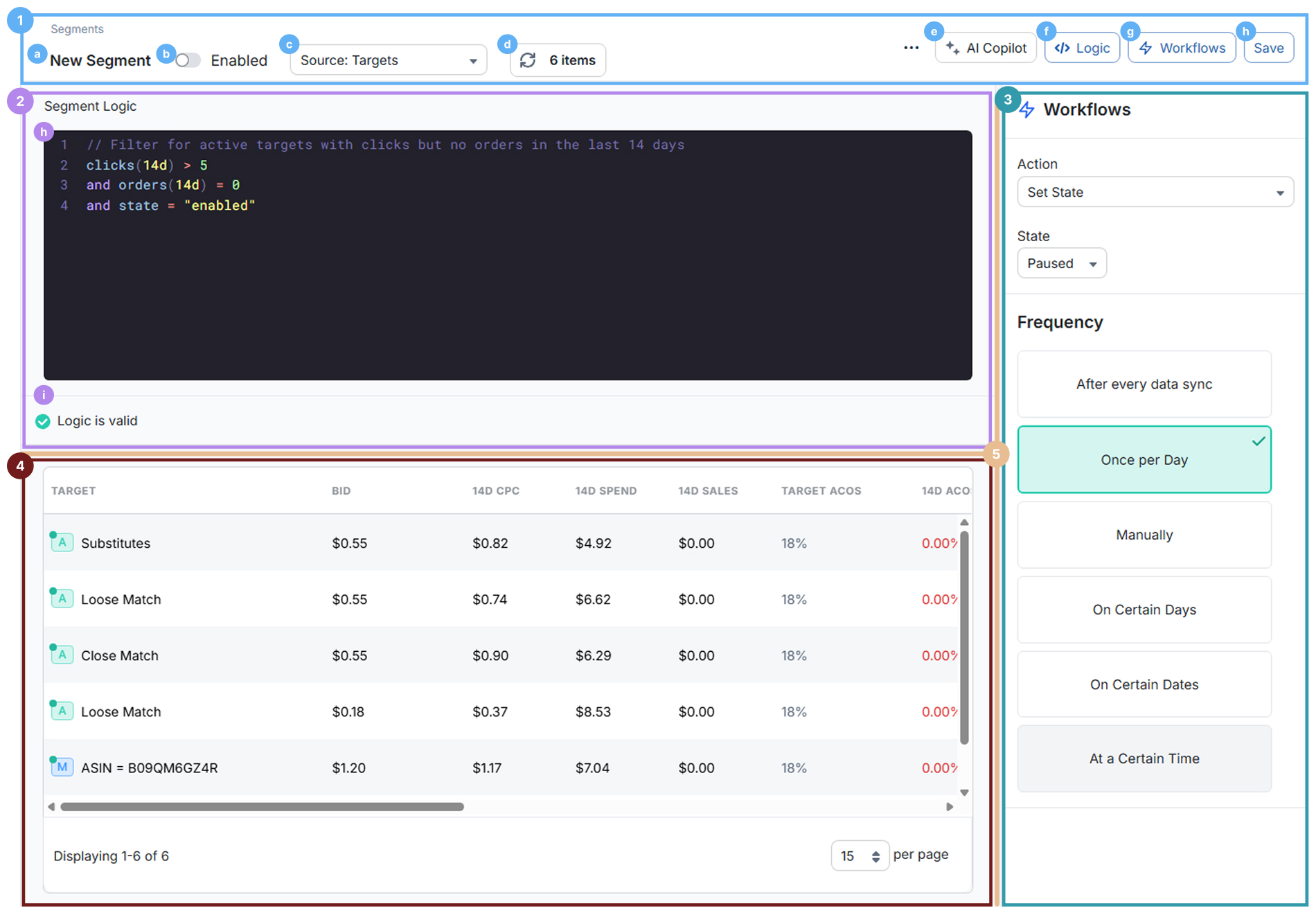
a. Name: Enter the name of your Segment.
b. Enabled toggle: Turn this on to allow Workflow actions for the Segment to run on the selected schedule.
c. Source: Choose the dataset this Segment uses (Campaigns, Ad Groups, Targets, etc.). Available properties in your logic change based on this source.
d. Items & Refresh: Shows how many items currently match your Segment Logic. Click this to refresh the Segment Results after you change your logic or when you want to re-check which items match.
e. AI Copilot: Opens the AI Copilot in a new window, which can help you write or refine V2 Logic for this Segment.
f. Logic: Collapse or expand the Segment Logic panel so you can focus on editing your logic or reviewing results.
g. Workflows: Collapse or expand the Workflows panel when you want more space for your logic or results.
h. Save: Save your Segment. The logic must be valid before it can be saved.
Segment Logic defines which items belong to your Segment.
h. Composer: Write your V2 Logic here. This logic defines which items belong to the Segment based on metrics and properties from the selected Source.
i. Validation: The status line below the editor shows whether the logic is valid or if there is a parsing error. Only valid logic can be saved or used by Workflows.
Workflows control what Merch Jar does with the items in your Segment and when those actions run. In this panel you choose an action (such as changing bids or creating negatives), configure how the value is calculated, and pick a schedule like after every data sync, once per day, or manual only.
For a full breakdown of available actions, value options, and schedule types, see the Workflows documentation.
The Segment Results area shows the items that currently match your logic, along with key metrics and properties. Use the table, scrollbar, and per-page selector to review more items when the Segment returns a large set of results. When you change your logic or when new data syncs in, use the Items & Refresh control in the Toolbar to update these results.
Use the orange drag handles between sections to resize the layout. Drag the vertical bar between Segment Logic and Workflows to give either side more room, and drag the horizontal bar between Segment Logic and Segment Results to show more of your logic or more of the results table, depending on what you’re working on.


