Workflows

Workflows

Workflows define the automated changes Merch Jar should make to the items in a Segment and how often those changes run.

Your Segment Logic (V2 Logic) decides which items are included. The Workflow attached to that Segment decides what to do with those items and when to do it.

Note: Currently, saving a Segment requires configuring at least one Workflow, even if the frequency is set to Manual or the Workflow is disabled.

How Workflows Fit with Segments

The flow works like this:

  • Segment Logic (V2 Logic): Filters items and can create custom properties with let variables.
  • Segment: The calculated list of items that match your logic at a given moment.
  • Workflow: Runs actions on those items according to the schedule you choose.

When the Workflow runs, Merch Jar re-evaluates the Segment using your current logic and the latest data, then applies the configured action to the items in that Segment.

Workflow Components

The Workflows panel has two main pieces: Action configuration and Frequency.
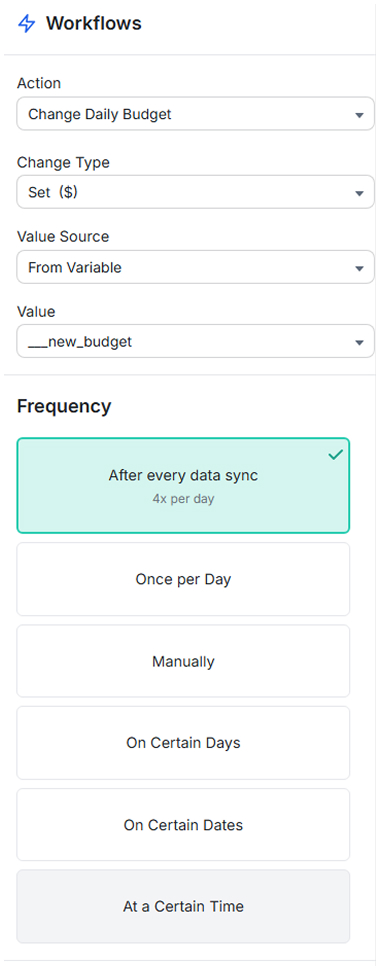
Action

The Action dropdown controls what Merch Jar does to items in the Segment. The available actions depend on the dataset selected as the Segment’s Source (Campaigns, Ad Groups, Keywords & Targets, Search Terms, etc.).

Typical actions include:

  • Adjusting bids or budgets
  • Setting state (enabled, paused, archived)
  • Creating exact match negatives (for Search Terms)

When you choose an action that modifies a numeric value (such as a bid or daily budget), you’ll see additional fields to control how that value is calculated.

Change Type

Change Type determines how the value should be changed, for example:

  • Increase (%)
  • Increase ($)
  • Decrease (%)
  • Decrease ($)
  • Set ($)

Value Source and Value

These fields decide where the new value comes from:

  • Value Source
    • From Value: Use a fixed value you type directly (for example, 10% or 0.50).
    • From Variable: Use a value from a variable defined in your Segment Logic (for example, $target_bid_new).
  • Value
    • If From Value is selected, this is the fixed value you enter.
    • If From Variable is selected, this is the variable you select from your logic.

This lets you keep the “how to calculate it” logic in your Segment and let the Workflow simply apply the result.

Frequency (Schedule)

The Frequency section controls how often the Workflow runs:

  • After every data sync: Runs multiple times per day, after each data sync.
  • Once per Day: Runs once per day at a set time.
  • Manually: Only runs when you explicitly trigger it.
  • On Certain Days: Runs on chosen days of the week.
  • On Certain Dates: Runs on specific calendar dates.
  • At a Certain Time: Adds time-of-day control when needed.

Each time the Workflow runs, it recalculates the Segment with your current logic and applies the action to the items that qualify at that moment.

Available Actions by Dataset

The exact actions available depend on the Segment’s source dataset.

Campaigns Dataset

  • Change Daily Budget
    Increase ($), Increase (%), Decrease ($), Decrease (%), or Set Daily Budget ($).
    • Supports From Value and From Variable value sources.
  • Set State
    Change campaign status to enabled, paused, or archived.

Ad Groups Dataset

  • Change Default Bid
    Increase ($), Increase (%), Decrease ($), Decrease (%), or Set Default Bid ($).
    • Supports From Value and From Variable value sources.
  • Set State
    Change ad group state to enabled, paused, or archived.

Keywords & Targets Dataset

  • Change Bid
    Increase ($), Increase (%), Decrease ($), Decrease (%), or Set Bid ($).
    • Supports From Value and From Variable value sources.
  • Set State
    Change keyword/target state to enabled, paused, or archived.

Search Terms Dataset

  • Create Exact Match Negative
    Creates exact match negative keywords for the selected search terms in the appropriate campaigns or ad groups.

Use the schedule you choose to control how often new negatives are created based on the current Segment results.

Using Variables in Actions

Variables in your Segment Logic are a powerful way to calculate target values and keep your Workflows simple.

For example, you might calculate a new bid based on recent performance:

let $target_bid_new = rpc(30d) * target_acos;

Then, in the Workflow:

  • Action: Change Bid
  • Change Type: Set ($)
  • Value Source: From Variable
  • Value: __target_bid_new

This pattern keeps your strategy in the logic and lets the Workflow focus on applying it on the schedule you choose.

Rounding Strategies

When bid or budget adjustments result in values with fractions of a cent, Merch Jar applies a rounding strategy to convert them to a whole cent.

  • Weighted Rounding (default): Uses probability based on the fractional part (for example, $0.102 has a 20% chance of rounding to $0.11 and an 80% chance of staying at $0.10). This helps avoid systematic over- or under-bidding.
  • Other strategies (Always Round Up, Always Round Down, Normal) are available in your account settings, but can cause stagnation or aggressive moves if used with very small bids or very frequent adjustments.

For more detail, see the Rounding Strategies overview.

Putting It All Together

To automate with Workflows:

  1. Write your Segment Logic to define which items qualify and, if needed, calculate helper variables with let.
  2. Review Segment Results to confirm your logic is selecting the right items.
  3. Configure a Workflow:
    • Choose an Action and Change Type.
    • Decide whether to use a fixed value or a variable.
    • Pick a Frequency that matches how quickly you want changes applied.
  4. Enable the Segment when you’re comfortable with the setup.

Once configured, Workflows keep applying your strategy on schedule so you can spend more time on strategy and less time on repetitive account maintenance.

PREVIOUS ARTICLE
NEXT ARTICLE