Scheduling Workflows

A Workflow runs the actions you set up (change a bid, set a state, create negatives) against the items in your Segment. The schedule decides when it runs. You can run a Workflow once at a set date and time, on a recurring pattern, or on an advanced custom schedule, all in the time zone you choose.

Scheduling lives in the Workflow panel, next to the action. If you're new to Workflows, read the Workflows overview first, then come back here for the schedule.

How a Workflow runs

The Runs setting controls how often the Workflow runs:

  • After every data sync: runs after each data refresh, several times a day.
  • Scheduled: runs at the local times you set. Choosing this reveals the schedule options below.
  • Manual: runs only when you trigger it yourself.

This doc covers Scheduled. Whichever mode you choose, each run re-evaluates your Segment with your current logic and the latest data, then applies the action to the items that qualify at that moment.

Set the time zone

Every scheduled run happens in the time zone you select. Pick it from the Time zone field at the top of the schedule.

  • Merch Jar runs the Workflow at the local time you set and adjusts automatically for daylight saving, so a 9:00 AM run stays at 9:00 AM year round.
  • If you schedule around the start or end of a day, match your marketplace time zone. Amazon reporting data rolls over on marketplace time, so this keeps your runs lined up with the data they act on.

Schedule types

Once Runs is set to Scheduled, choose one of three schedule types.

Once

Runs the Workflow a single time, then stops.

  • Set the Date and Time.
  • The Next scheduled runs list confirms the single run.

Use this for a one-off change, like a planned bid move on a launch date.
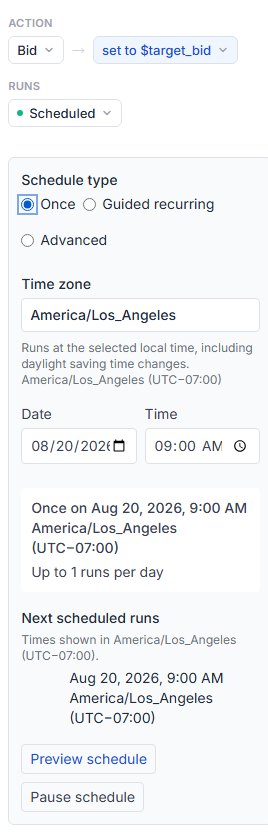
Merch Jar Workflow schedule set to Once, with a date and time

Guided recurring

Runs the Workflow on a repeating weekly pattern. This is the option most schedules use.

  • Days: check the days of the week you want it to run.
  • Local times: set the time of day. Click Add time to run more than once a day, up to four times.
  • The summary and Next scheduled runs list update as you make changes, so you can confirm the pattern before saving.

For example, check Monday through Friday and set 9:00 AM and 12:00 PM, and the Workflow runs twice a day on weekdays.
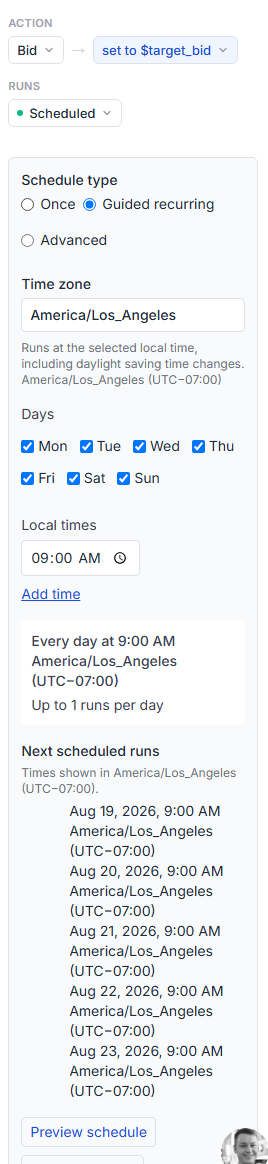
Merch Jar Workflow schedule set to Guided recurring, with days and local times

Advanced

Runs the Workflow on a custom schedule written as a five-part expression (cron). Use this when Guided recurring doesn't cover what you need, like specific dates each month or a step interval.

The five parts, in order, are minute, hour, day, month, and weekday. Each field's allowed values:

  • Minute: 0 to 59
  • Hour: 0 to 23
  • Day: 1 to 31
  • Month: 1 to 12, or JAN to DEC
  • Weekday: 0 to 7, or SUN to SAT (0 and 7 both mean Sunday)

Each field accepts these patterns:

  • * - any value
  • , - a list, like 9,13,17
  • - - a range, like 1-15
  • / - a step, like */2 for every other value

Some examples:

  • 0 9 * * * - every day at 9:00 AM
  • 0 9,13,17 * * * - every day at 9:00 AM, 1:00 PM, and 5:00 PM
  • 30 9 1-15 * * - 9:30 AM on the 1st through the 15th of every month
  • 0 8 * * 1 - 8:00 AM every Monday

Merch Jar checks the expression when you save and tells you if it can't be read. The Next scheduled runs list shows exactly when it will fire, so you can confirm the expression does what you meant before saving.
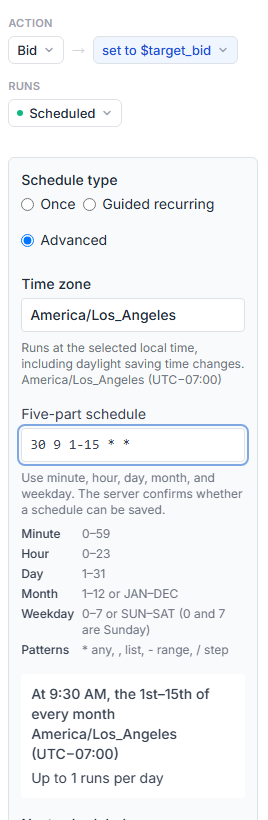
Merch Jar Workflow schedule set to Advanced, with a five-part cron expression and field reference

Confirm and pause

  • Next scheduled runs lists the upcoming run times in your selected time zone and updates as you change the schedule. Check it before saving to make sure the timing is right.
  • Pause schedule stops the Workflow from running without deleting the schedule. Your settings stay in place, so you can resume later.

A few things to know

  • Every run uses your current Segment logic and the latest data. If you change your logic, the next run reflects it.
  • Times are in the selected time zone, not UTC. The Next scheduled runs list always shows the zone it's using, so double-check that zone matches what you intended.
  • Saving a Segment requires at least one Workflow, even if you set it to Manual or leave it disabled.

Related

PREVIOUS ARTICLE
NEXT ARTICLE